

How to Reboot and Troubleshoot Your Samsung Galaxy Tablet
Samsung Galaxy tablet users can resolve sluggish performance, frozen screens, and unresponsive applications using several distinct rebooting methods. These techniques range from a standard restart using physical buttons to more advanced recovery processes.
বিজ্ঞাপন

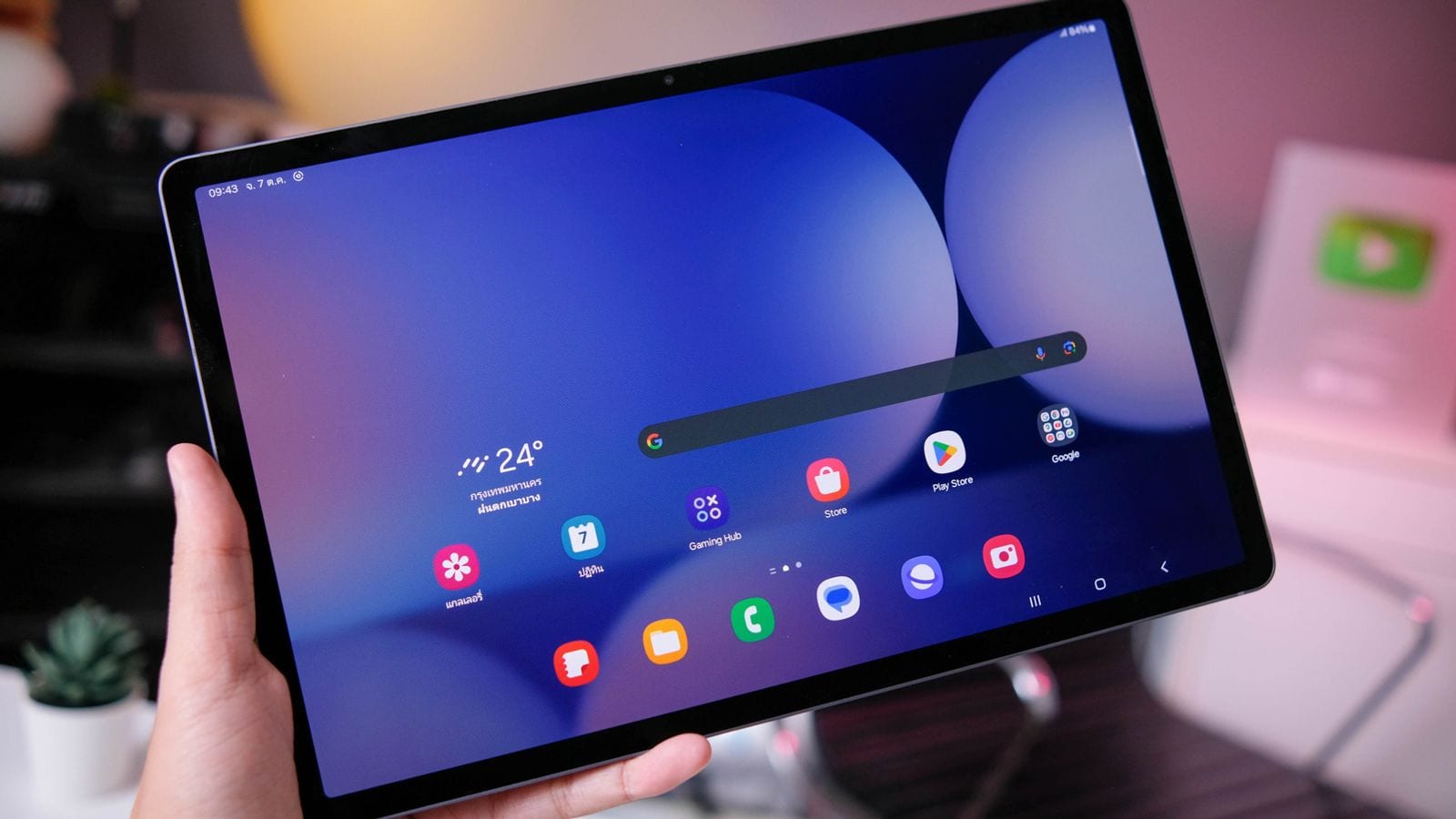
When operating a Samsung Galaxy tablet, users may occasionally encounter technical difficulties such as sluggish system performance, unresponsive applications, or completely frozen screens. Fortunately, according to guidance detailed by Engadget, there are multiple reliable methods available for rebooting and troubleshooting these devices to restore normal functionality.
The most common approach for resolving minor software glitches is a standard restart. This procedure is designed to clear the tablet's temporary memory and close out background processes that may be causing the device to lag or behave erratically during daily use.
To perform a standard restart on a Samsung Galaxy tablet, users must execute a specific combination of physical button presses. You need to press and hold both the Power button and the Volume Down button simultaneously.
This action must be maintained until the device displays the power menu on the screen. Once the power menu successfully appears, the user simply needs to tap the Restart option to initiate the reboot sequence.
Beyond the standard restart method, Samsung Galaxy tablets also support a force restart and various recovery processes for more severe operational issues. These additional procedures provide alternative pathways when standard troubleshooting steps fail to resolve the problem.
Source: Engadget
বিজ্ঞাপন